Managing Jobs and Snapshots
Viewing Jobs and Job Status Information
To view your current jobs and job status information, start by selecting the Jobs button in the console window to switch to the Jobs view:
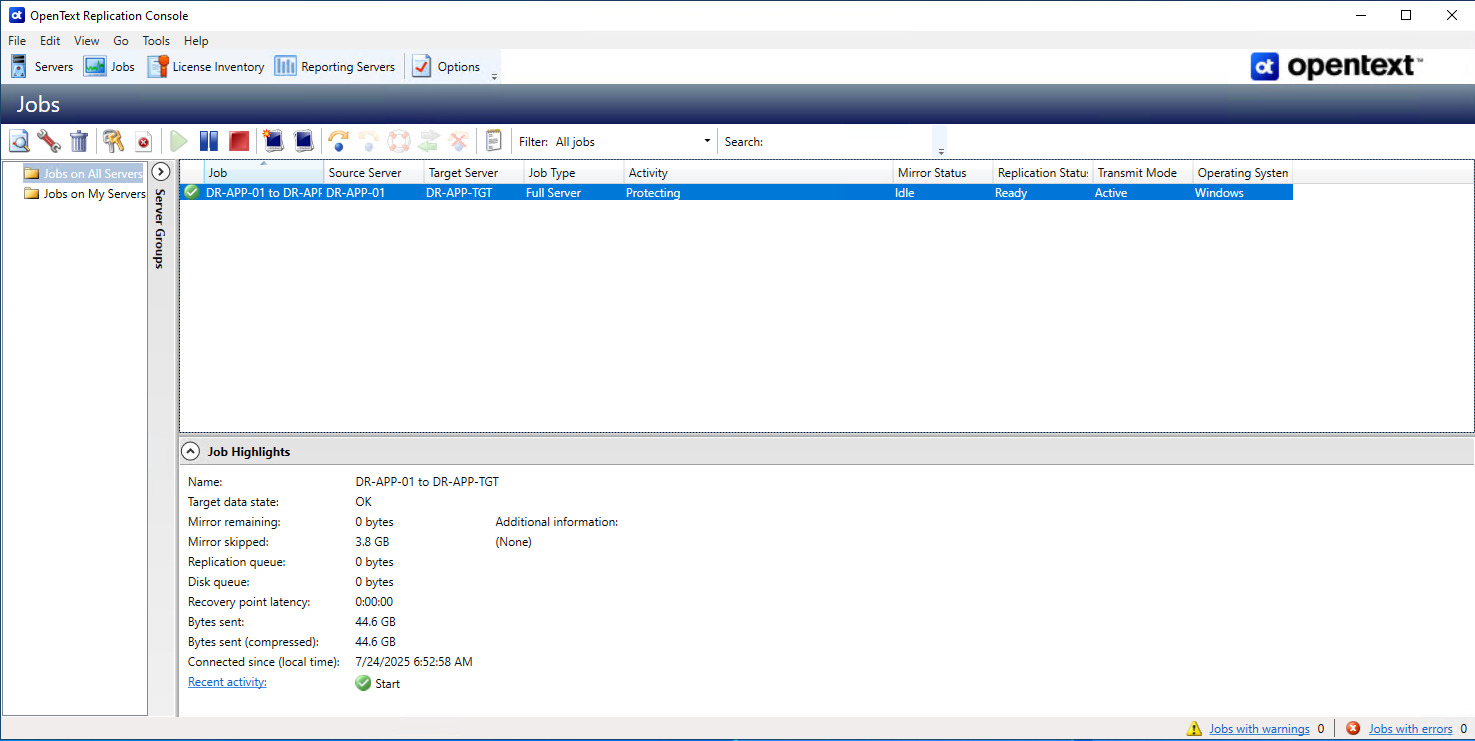
Much of the display will be familiar to you from the initial console orientation which covers the Servers console view. This view, however, covers the particulars for configured jobs. The columns visible will vary depending on whether the job is a full server replication job, or a files and folders replication job.
Job Columns
Column 1 (Blank)
Displays the health of the job:
- Healthy -
 - Job is operating as expected. No action required.
 - Warning -
 - Job is in a pending or warning state. This icon is also displayed on any server groups that you have created that contain a job in a pending or warning state. OpenText Availability is working or waiting on a pending process or attempting to resolve the warning state.
 - Error -
 - Job is in an error state. This icon is also displayed on any server groups that you have created that contain a job in an error state. You will need to investigate and resolve the error.
 - Unknown -
 - Job is in an unknown state.
Source Server
The name of the source. This could be a name or IP address of a standalone server, a cluster, or a node. Cluster jobs will be associated with the cluster name and standalone jobs will be associated with a standalone server or a cluster node.
Target Server
The name of the target. This could be a name or IP address of a standalone server, a cluster, or a node. Cluster jobs will be associated with the cluster name and standalone jobs will be associated with a standalone server or a cluster node.
Job Type
Displays the job type.
Activity
There are many different Activity messages that keep you informed of the job activity. Most of the activity messages are informational and do not require any administrator interaction. If you see error messages, check the job details. Keep in
mind that Idle indicates console to server activity is idle, not that your servers are idle.
Mirror Status
Displays the parity of data/state between the source and target (mirror status):
- Calculating - The amount of data to be mirrored is being calculated.
- In Progress - Data is currently being mirrored.
- Waiting - Mirroring is complete, but data is still being written to the target.
- Idle - Data is not being mirrored.
- Paused - Mirroring has been paused.
- Stopped - Mirroring has been stopped.
- Removing Orphans - Orphan files on the target are being removed or deleted depending on the configuration.
- Verifying - Data is being verified between the source and target.
- Restoring - Data is being restored from the target to the source.
- Unknown - The console cannot determine the status.
Replication Status
Displays the status of replication of data between source and target:
- Replicating - Data is being replicated to the target.
- Ready - There is no data to replicate.
- Pending - Replication is pending.
- Stopped - Replication has been stopped.
- Out of Memory - Replication memory has been exhausted.
- Failed - The Double-Take service is not receiving replication operations from the SyncSafe Replication driver. Check the Event Viewer for driver related issues.
- Unknown - The console cannot determine the status.
Transmit Mode
Displays the state of data transmission:
- Active - Data is being transmitted to the target.
- Paused - Data transmission has been paused.
- Scheduled - Data transmission is waiting on schedule criteria.
- Stopped - Data is not being transmitted to the target.
- Error - There is a transmission error.
- Unknown - The console cannot determine the status.
Operating System
Displays the operating system of the system being protected.
Detailed Job Status (Bottom Right Pane)
The details displayed in the bottom pane provide additional information for the job highlighted in the top pane. You can expand or collapse the bottom pane by clicking on the Job Highlights heading.
Managing and Controlling Full Server Jobs
Click Jobs from the main SyncSafe Replication Console toolbar. The Jobs page allows you to view status information about your jobs. You can also control your jobs from this page.
The jobs displayed in the right pane depend on the server group folder selected in the left pane. Every job for each server in your console session is displayed when the Jobs on All Servers group is selected. If you have created and populated server groups then only the jobs associated with the server or target servers in that server group will be displayed in the right pane.
Overview Job Information Displayed in the Top Right Pane
The top pane displays high-level overview information about your jobs. You can sort the data within a column in ascending and descending order. You can also move the columns to the left or right of each other to create your desired column order. The list below shows the columns in their default left to right order.
If you are using server groups, you can filter the jobs displayed in the top right pane by expanding the Server Groups heading and selecting a server group.
Managing Snapshots
OG Docu pg 78