Protection Plan Quickstart
With servers now added and licensed in SyncSafe Replicate, we will now need to create Protection Plans that will allow us to replicate and protect our servers. This page will walk through the creation of various protection plan types.
This page will cover the steps to create Protection Plans.
Warning
Before proceeding, make sure you have reviewed the Job Options page for a full explanation of all of the options available to you in the Job Options wizard.
Creating a New Protection Plan
To get started, we need to create a new protection plan. From the Servers page, right-click the server you want to protect and select Protect. You can also highlight a server and click the Create a New Job icon in the toolbar,  , then select
 Protect in the submenu that pops up. Either of these methods will open the Protection Plan wizard:
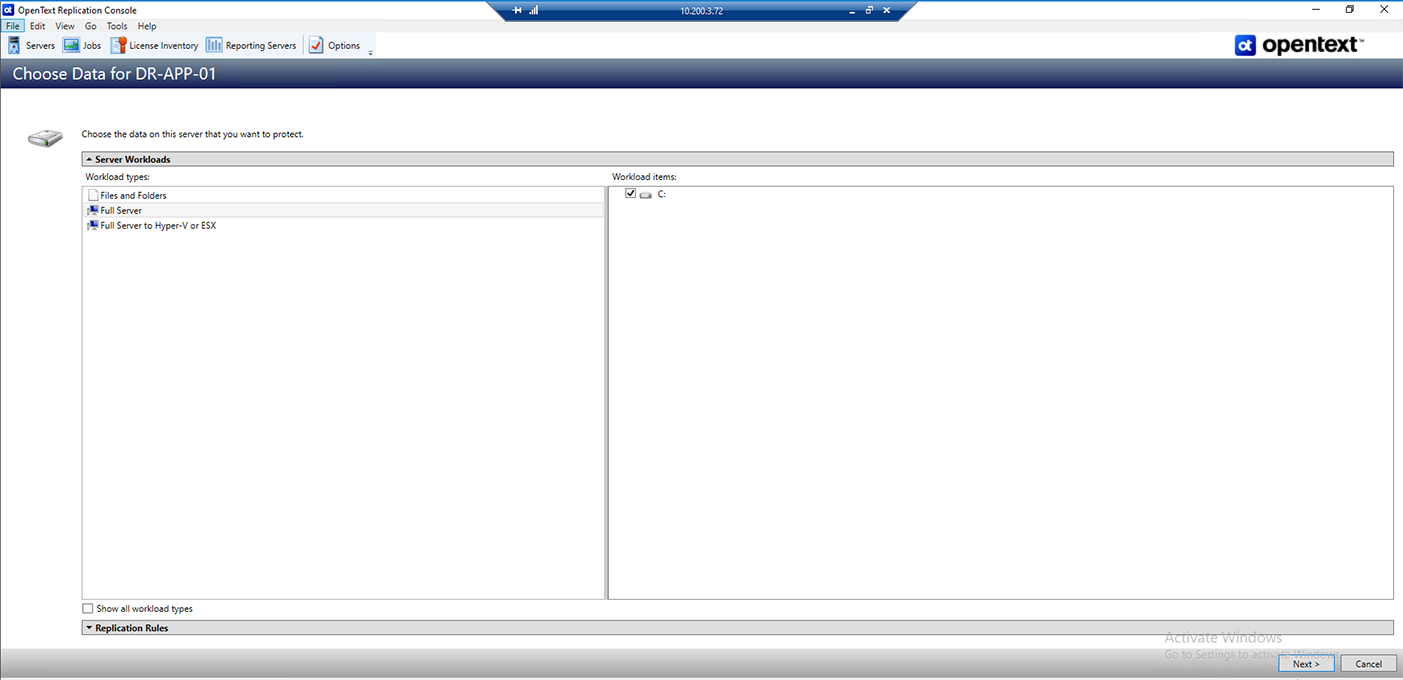
Here you can select different types of protection plans. In this guide, we will discuss the two main types of jobs, Files and Folders and Full Server. While a third option is presented, Full Server to Hyper-V or ESX, this option doesn't apply to workloads within the US Signal cloud environment. Your Account Rep and Solutions Architect can assist you with obtaining additional information on this option should there be a special use case where this may be necessary.
For full protection job option details, see the Protection Job Options page.
Replication Job Creation By Job Type
File and Folder Replication
File and Folder replication jobs allow for data to be replicated between servers. Note that these instructions cover single server workloads. There are special steps required if replication involves a clustered server that will be addressed in a later section.
Configuring The Job
- Under
Server Workloads, in theWorkload Typespane, selectFiles and Folders. In theWorkload Itemspane, you will see the volumes and shares (if any) for your source. Select the volumes and shares that you want to protect. You can select your files and folders in more detail in theReplication Rulessection.- New shares within the original replication rules created after the job is created will be included on the target. However, new shares created outside of the original replication rules after the job is created will not be included on the target. For example, if C:\a is originally protected and a new share for C:\a\b is created, that share will be included on the target. However if C:\b is created, you must modify the replication rules to make sure the new share is included on the target.
- If the workload you are looking for is not displayed, select the Show all workload types check box. The workload types in gray text are not available for the source server you have selected. Hover your mouse over an unavailable workload type to see a reason why this workload type is unavailable for the selected source.
- To select your files and folders in more detail, click the Replication Rules heading and expand the volumes under Folders.
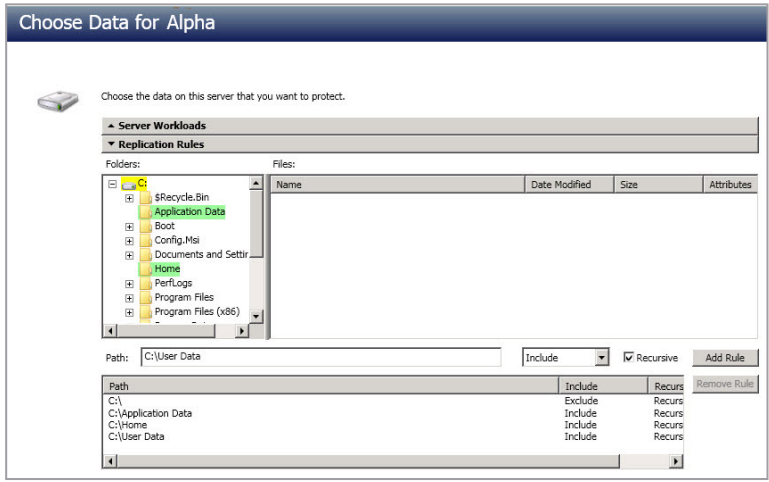
- Volumes and folders with a green highlight are included completely. Volumes and folders highlighted in light yellow are included partially, with individual files or folders included. If there Chapter 5 Files and folders protection 90 is no highlight, no part of the volume or folder is included. To modify the items selected, highlight a volume, folder, or file and click Add Rule. Specify if you want to Include or Exclude the item. Also, specify if you want the rule to be recursive, which indicates the rule should automatically be applied to the subdirectories of the specified path. If you do not select Recursive, the rule will not be applied to subdirectories.
- You can also enter wildcard rules, however you should do so carefully. Rules are applied to files that are closest in the directory tree to them. If you have rules that include multiple folders, an exclusion rule with a wild card will need to be added for each folder that it needs applied to. For example, if you want to exclude all .log files from D: and your rules include D:\, D:\Dir1, and D:\Dir2, you would need to add the exclusion rule for the root and each subfolder rule. So you will need to add exclude rules for D:*.log , D:\Dir1*.log, and D:\Dir2*.log.
- If you need to remove a rule, highlight it in the list at the bottom and click Remove Rule. Be careful when removing rules. SyncSafe Replicate may create multiple rules when you are adding directories. For example, if you add E:\Data to be included in protection, then E: will be excluded. If you remove the E: exclusion rule, then the E:\Data rule will be removed also.
- If you return to this page using the Back button in the job creation workflow, your Workload Types selection will be rebuilt, potentially overwriting any manual replication rules that you specified. If you do return to this page, confirm your Workload Types and Replication Rules are set to your desired settings before proceeding forward again.
- Click Next to continue.
- Choose your target server. This is the server that will store the replica data from the source.
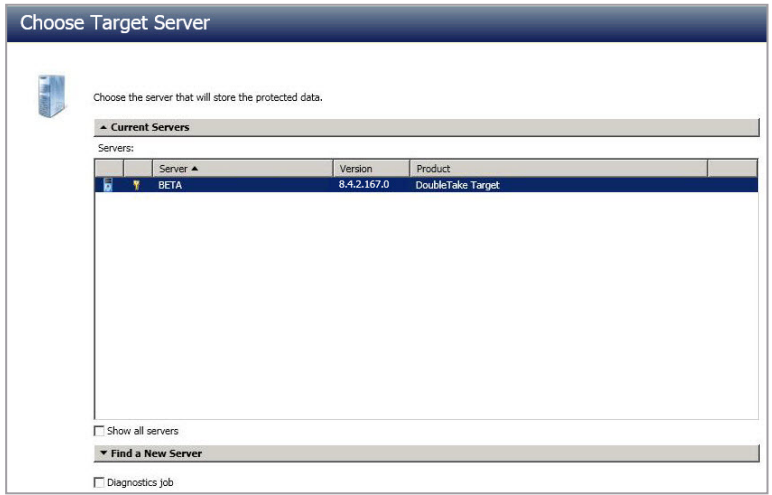
- Current Servers - This list contains the servers currently available in your console session. Servers that are not licensed for the workflow you have selected and those not applicable to the workload type you have selected will be filtered out of the list. Select your target server from the list. If the server you are looking for is not displayed, enable
Show All Servers. The servers in red are not available for the source server or workload type you have selected. Hover your mouse over an unavailable server to see a reason why this server is unavailable. - Find a New Server - If the server you need is not in the
Current Serverslist, click theFind a New Serverheading. From here, you can specify a server along with credentials for logging in to the server. If necessary, you can clickBrowseto select a server from a network drill-down list. - If you enter the target server's fully-qualified domain name, the SyncSafe Replicate Console will resolve the entry to the server short name. If that short name resides in two different domains, this could result in name resolution issues. In this case, enter the IP address of the server.
- When specifying credentials for a new server, specify a user that is a member of the local Double-Take Admin security group. Ideally, you should use a local account rather than a domain account because the domain account will fail to authenticate while failed over if the NetBIOS name and/or SPNs are failed over. If you want SyncSafe Replicate to update DNS during failover, the account must be a member of the Domain Admins group. If your security policies do not allow use of this group, see
SyncSafe Replicate DFO Utilityon the troubleshooting page to use a non-Domain Admins account.
- Current Servers - This list contains the servers currently available in your console session. Servers that are not licensed for the workflow you have selected and those not applicable to the workload type you have selected will be filtered out of the list. Select your target server from the list. If the server you are looking for is not displayed, enable
- Click Next to continue.You may be prompted for a route from the target to the source. This route, and a port if you are using a non-default port, is used so the target can communicate with the source to build job options. This dialog box will be displayed only if needed.
For full details on the Job Options section, See Protection Job Options Explained - File and Folder Protection Jobs for complete details for each section.
Full System Replication
Full System Replication allows you to protect an entire server's state to an alternate system, which allows for a quick activation of a standby copy. Many of the steps are similar to those for creating a File and Folder Replication job, so the process and icons/menus used will be familiar.
Considerations
Besides reading the Server Job Requirements and Workload Replication Caveats & Additional Considerations pages, review these best practices before you create your job.
- NIC Configuration - If you are planning to failover the IP address of the source, use a separate NIC and separate network for a SyncSafe Replicate reserved IP address that will not be failed over. If you are unable to do that and just one NIC is used for both production and reserved IP addresses, disable DNS registration on the NIC. If you are not going to failover the IP address of the source, an additional NIC and address is not necessary. In this case, SyncSafe Replicate will block the DNS record for that address while it is failed over.
- Management Console - Ideally, you should use a separate machine (not the source or target) to run the console, configure protection, to failover, and to reverse. The separate machine must be able to communicate with the source and target using their reserved IP addresses.
- SyncSafe Replicate Console - Insert your source and target servers into the console using the reserved IP addresses and a local computer account that is a member of the Double-Take Admin and Administrators groups.
Configuring A Full System Replication Job
Selecting The Workload For Replication
- Under
Server Workloads, in theWorkload Typespane, selectFull Server. In theWorkloadItems pane, select the volumes on the source that you want to protect.- If the workload you are looking for is not displayed, select the
Show All Workload Typescheck box. The workload types in gray text are not available for the source server you have selected. Hover your mouse over an unavailable workload type to see a reason why this workload type is unavailable for the selected source.
- If the workload you are looking for is not displayed, select the
By default, SyncSafe Replicate selects your entire source for protection. If desired, click the Replication Rules heading and expand the volumes under Folders. You will see that SyncSafe Replicate automatically excludes particular files that cannot be used during the protection. If desired, you can exclude other files that you do not want to protect, but be careful when excluding data. Excluded volumes, folders, and/or files may compromise the integrity of your installed applications. There are some volumes, folders, and files (identified in italics text) that you will be unable to exclude, because they are required for protection. For example, the boot files cannot be excluded because that is where the system state information is stored.
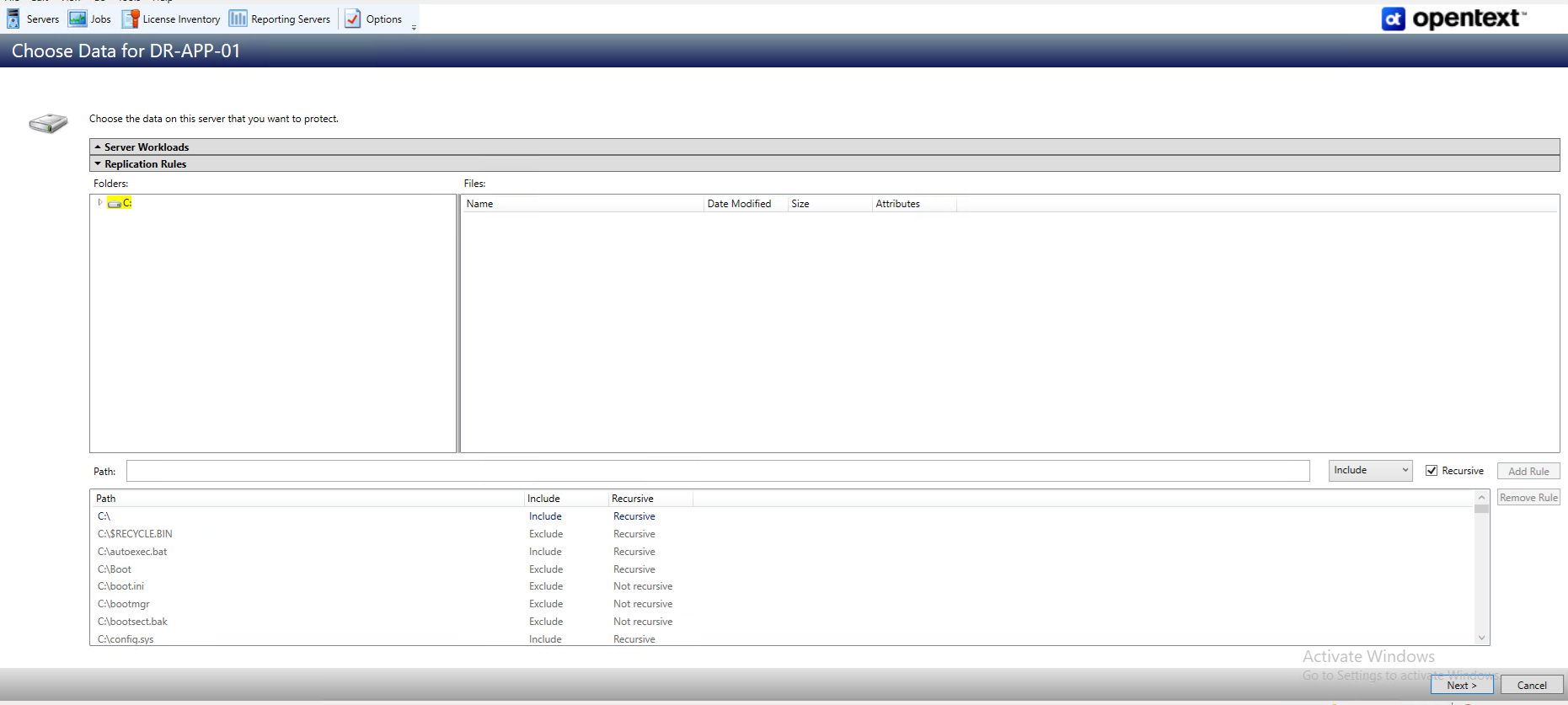
Volumes and folders with a green highlight are included completely. Volumes and folders highlighted in light yellow are included partially, with individual files or folders included. If there is no highlight, no part of the volume or folder is included. To modify the items selected, highlight a volume, folder, or file and click Add Rule. Specify if you want to Include or Exclude the item. Also, specify if you want the rule to be recursive, which indicates the rule should automatically be applied to the subdirectories of the specified path. If you do not select Recursive, the rule will not be applied to subdirectories.
You can also enter wildcard rules, however you should do so carefully. Rules are applied to files that are closest in the directory tree to them. If you have rules that include multiple folders, an exclusion rule with a wild card will need to be added for each folder that it needs applied to. For example, if you want to exclude all .log files from D: and your rules include D:\, D:\Dir1, and D:\Dir2, you would need to add the exclusion rule for the root and each subfolder rule. So you will need to add exclude rules for D:*.log , D:\Dir1*.log, and D:\Dir2*.log.
If you need to remove a rule, highlight it in the list at the bottom and click Remove Rule. Be careful when removing rules. SyncSafe Replicate may create multiple rules when you are adding directories. For example, if you add E:\Data to be included in protection, then E: will be excluded. If you remove the E: exclusion rule, then the E:\Data rule will be removed also.
Important
If you return to this page using the Back button in the job creation workflow, your Workload Types selection will be rebuilt, potentially overwriting any manual replication rules that you specified. If you do return to this page, confirm your Workload Types and Replication Rules are set to your desired settings before proceeding forward again.
If IIS is being used as a hardware platform manager by your hardware vendor on both the source and target, you need to remove the INetPub directory from replication under the Replication Rules heading. If IIS is being used as a software application on your source but as a hardware platform manager by your hardware vendor on your target, you need to add the INetPub directory to the Staged Folders Options list on the Set Options page later in this workflow.
Once you have completed configuring your Replication Rules, click Next to continue.
Selecting the Replication Target
The next step is to choose a target server for replication. This is the server that will store the replica data from the source, and in the event of a failover, it will be promoted and become the source.
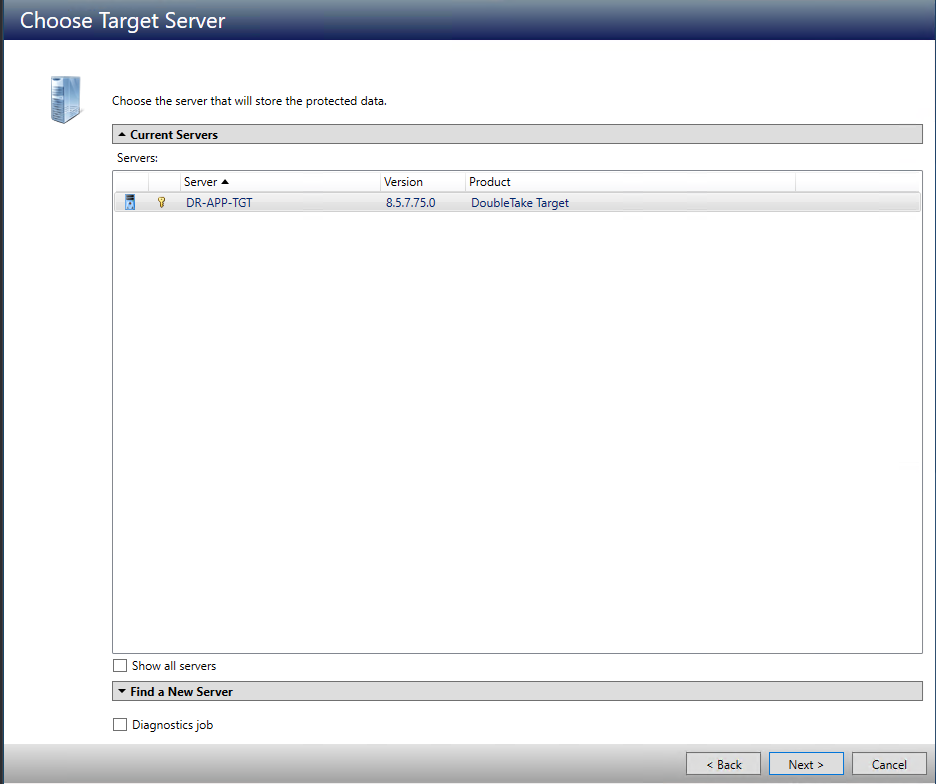
This screen will show you a list of currently added systems, as well as offer you the option to Find a New Server.
-
Current Serverslists the currently added systems. Servers that are not licensed for the workflow you have selected and those not applicable to the workload type you have selected will be filtered out of the list. Select your target server from the list. If the server you are looking for is not displayed, enable theShow All Serverscheckbox. The servers in red are not available for the source server or workload type you have selected. Hover your mouse over an unavailable server to see a reason why this server is unavailable. -
Find a New Serverallows you to find a server if the server you need is not in theCurrent Serverslist. Click theFind a New Serverheading to expand it. From here, you can specify a server along with credentials for logging in to the server. If necessary, you can click Browse to select a server from a network drill-down list:
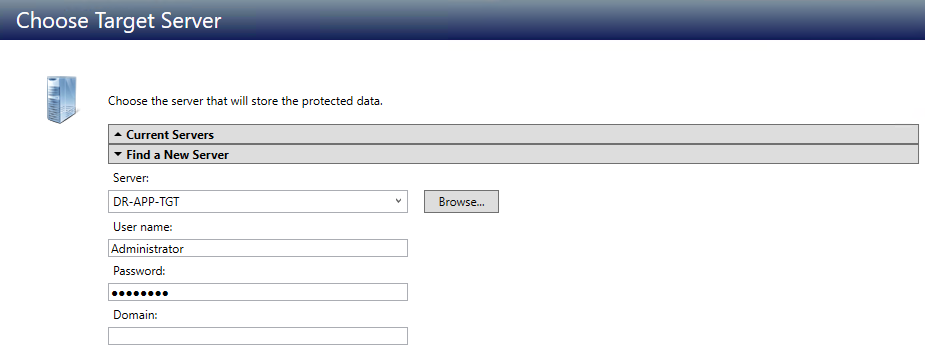
When searching for a new server, if you enter the target server's fully-qualified domain name, the SyncSafe Replicate Console will resolve the entry to the server short name. If that short name resides in two different domains, this could result in name resolution issues. In this case, enter the IP address of the server.
Specifying Server Credentials
When specifying credentials for a new server, specify a user that is a member of the local Double-Take Admin and local administrator security groups. If the source is a domain controller, SyncSafe Replicate will add the security groups to the users OU, therefore permissions must be located there. If your source is the only domain controller in your network, the account must also be a local account in the local administrators group on the target. If you want SyncSafe Replicate to update DNS during failover, the account must be a member of the Domain Admins group. If you cannot use this group, see the DNS section on the Troubleshooting page and use the instructions under the SyncSafe Replicate DFO utility to use a non-Domain Admins account.
Note
It is strongly advised to create multiple Active Directory Domain Controllers in diverse locations and utilize standard Active Directory replication. This allows all data to remain current and correct in the Active Directory Domain database, and allows following the best practices for the movement of FSMO roles in the event of a failure or outage following Microsoft Best Practices guidelines. The use of third-party replication tools to protect and fail over Active Directory Domain Controllers may result in failures, inconsistent states, and other potentially fatal issues with your Domain.
Once you have selected your target, click Next to continue.
Failover Options
On this page, you will be given a number of options to configure your replication job's details. See Protection Job Options Explained - Full Server Protection Jobs for complete details for each section.
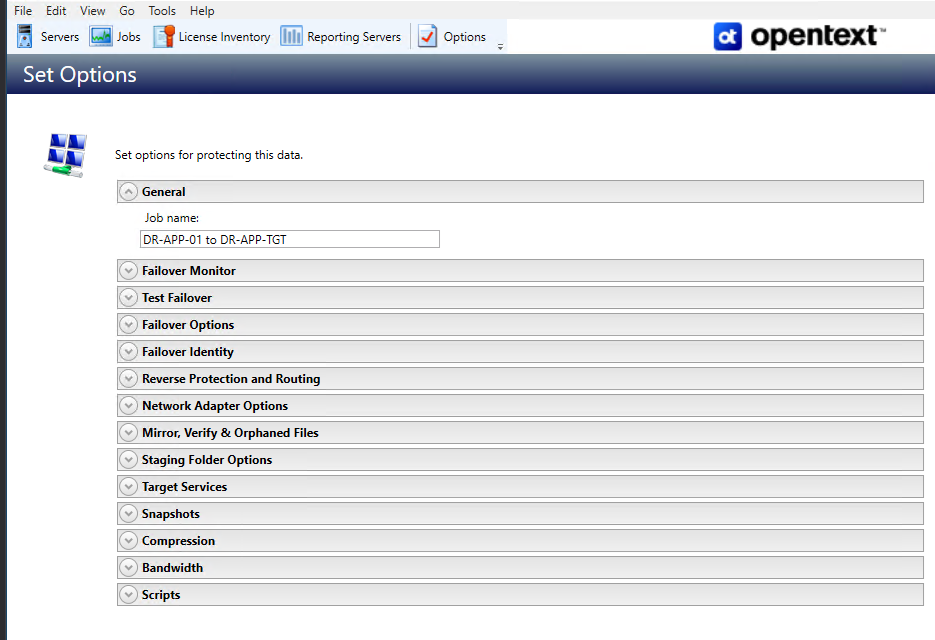
For a basic replication plan, you will need to specify the following options:
- General - Job Name. This will identify the job you are creating. It should be simple, but informative enough to tell at a glance what the job is meant to do.
- Staging Folder Options -
Select Additional Folders From The Source That Need To Be Staged- Applications running on the target that cannot be stopped will cause retry operations because SyncSafe Replicate will be unable to write to open application files. In this case, you will want to mirror those application files to a staging location instead of their actual location. Generally, this will only apply to applications that are not installed in the Windows Program Files directory. In this case, click Add and specify the folder that you want staged. Any staged folders will be applied to their actual installation location during failover.
IIS Sources
If IIS is being used as a software application on your source but as a hardware platform manager by your hardware vendor on your target, you need to add the INetPub directory to the Staged Folders Options list. If IIS is being used as a hardware platform manager by your hardware vendor on both the source and target, you need to go to the Choose Data page and remove the INetPub directory from replication under the Replication Rules heading.
- Snapshots - This allows you to configure point in time checkpoints of the replicated state utilizing the VSS functionality on the target. These Snapshot checkpoints can be selected and used for failovers in the event that an earlier point in time is needed.
Production Failover and Failover Testing
When performing a failover, if you use the Failover option and not the Failover Test option, the failover will complete and be permanent, and all Snapshots will be removed as part of the failover. This operation cannot be undone. In order to enable non-destructive failovers for the purposes of failover testing or validation, the Test Failover options should be configured. Consult the Protection Job Options Explained - Full Server Protection Jobs page's Test Failover section for details.
Once you have the basics configured, click Next.
Summary
Now that you have the job configured and have set the options, the SyncSafe Replicate console will validate all of the variables/settings for the job, ensure there are no duplicate jobs, and test for errors that might prevent the job from working. If any errors appear, go back and review the issues as called out by the validation. Some issues may require you to cancel job creation and address configuration issues with servers or review existing protection jobs. See the Troublehsooting - Job Validation Issues page section for further troubleshooting information.
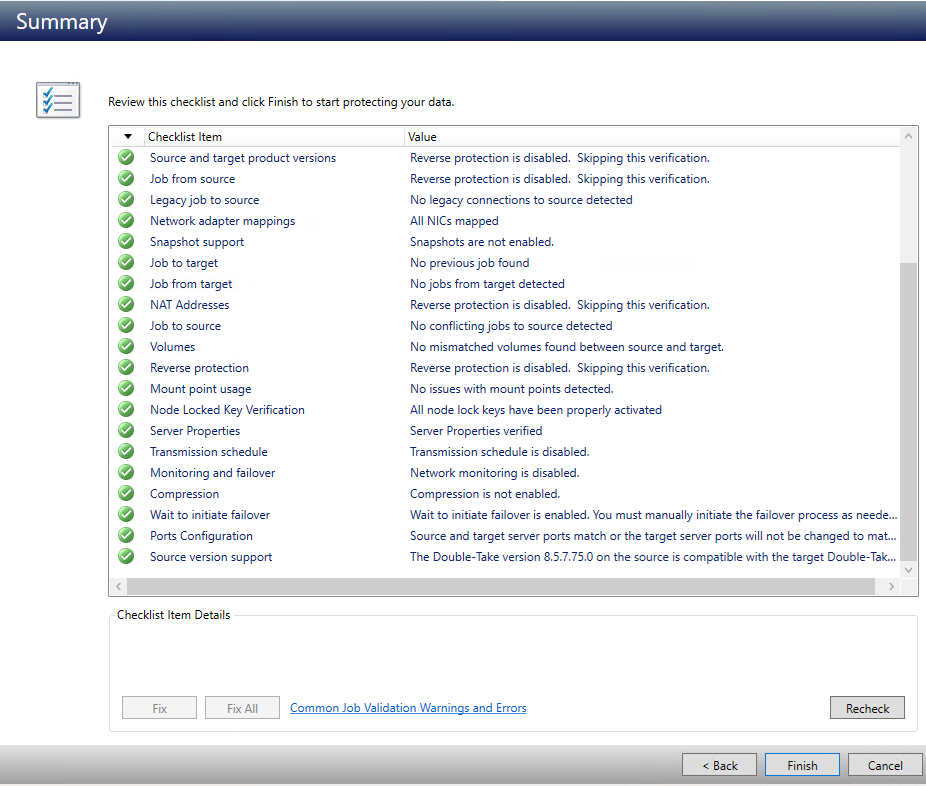
Once everything has validated successfully, click finish. For our basic job, because we did not specify a specific mirror start time, the job will begin mirroring immediately.
Note that jobs in a NAT environment may take longer to start. Also, once a job is created, do not change the name of underlying hardware components used in the job. For example, volume names, network adapter names, or virtual switch names. Any component used by name in your job must continue to use that name throughout the lifetime of job. If you must change a name, you will need to delete the job and re-create it using the new component name.